One of the most convenient features introduced in iCarMode 8.7 is iCloud Sync. This feature ensures that your personal setup — including your favorite places, music, and dashboard preferences — is always backed up and available across your devices.
Whether you switch to a new iPhone, reinstall the app, or use multiple devices, your iCarMode experience stays consistent without requiring you to set everything up again.
Let’s look at how it works and why it’s useful.
Why iCloud Sync Matters
Many iCarMode users invest time customizing their dashboard and building their favorites list for navigation, music, podcasts, and radio.
With iCloud Sync, all of that information is safely stored in your private iCloud account, which means:
- Your favorites and history are backed up automatically
- Your settings and layout are preserved
- Your experience stays consistent across devices
- You won’t lose your setup if you replace or reset your phone
Because the data is stored in your personal iCloud storage, it remains private and secure — accessible only to you.
How iCloud Sync Works
When iCloud Sync is enabled, iCarMode securely saves your configuration and favorites to your iCloud account.
If you install iCarMode on another device using the same Apple ID, the app can automatically restore your data.
This includes things like:
- Favorite locations and destinations
- Favorite contacts
- Music and radio favorites
- Podcast favorites and progress
- Navigation settings
- Dashboard layout and configuration
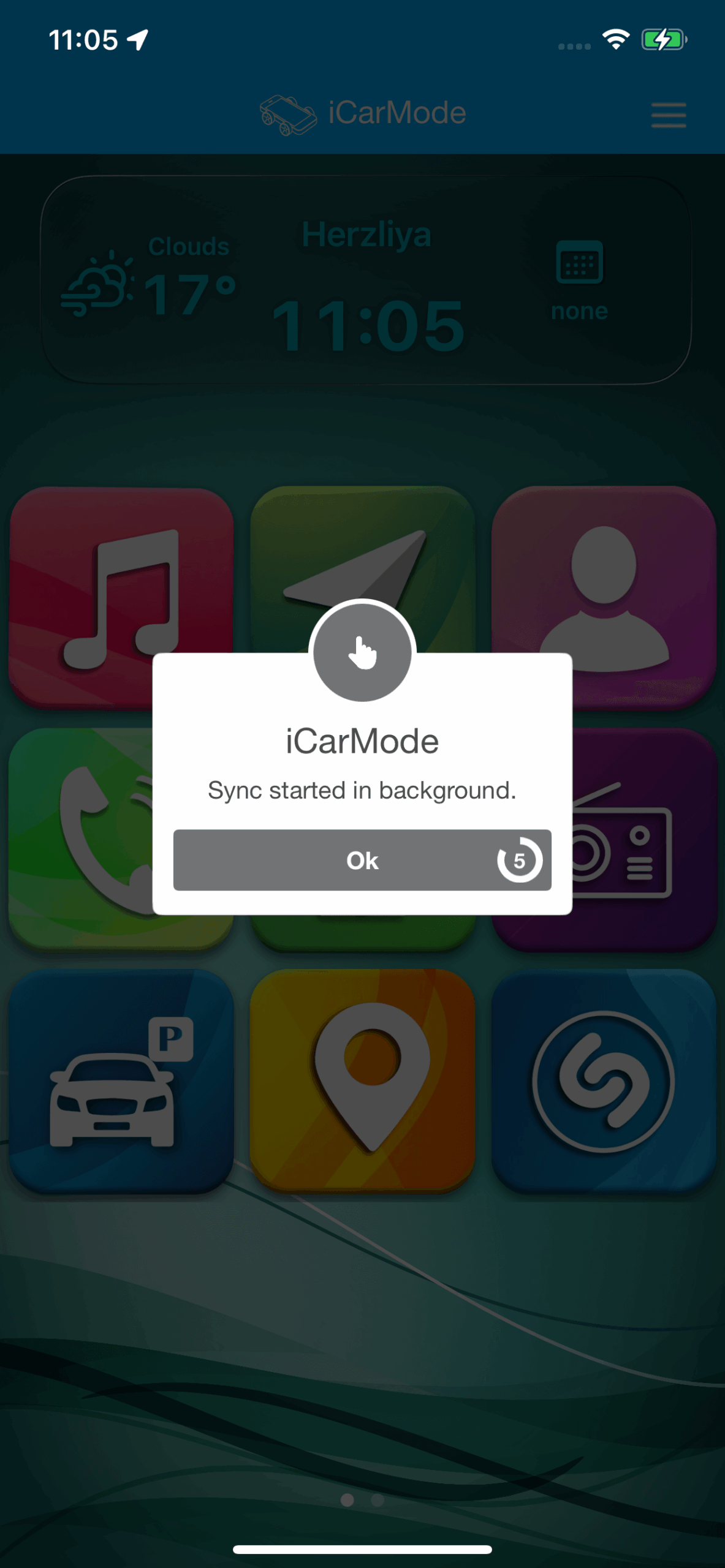
The sync process runs in the background, so you can continue using the app without interruption.
Your Control: Privacy and Consent
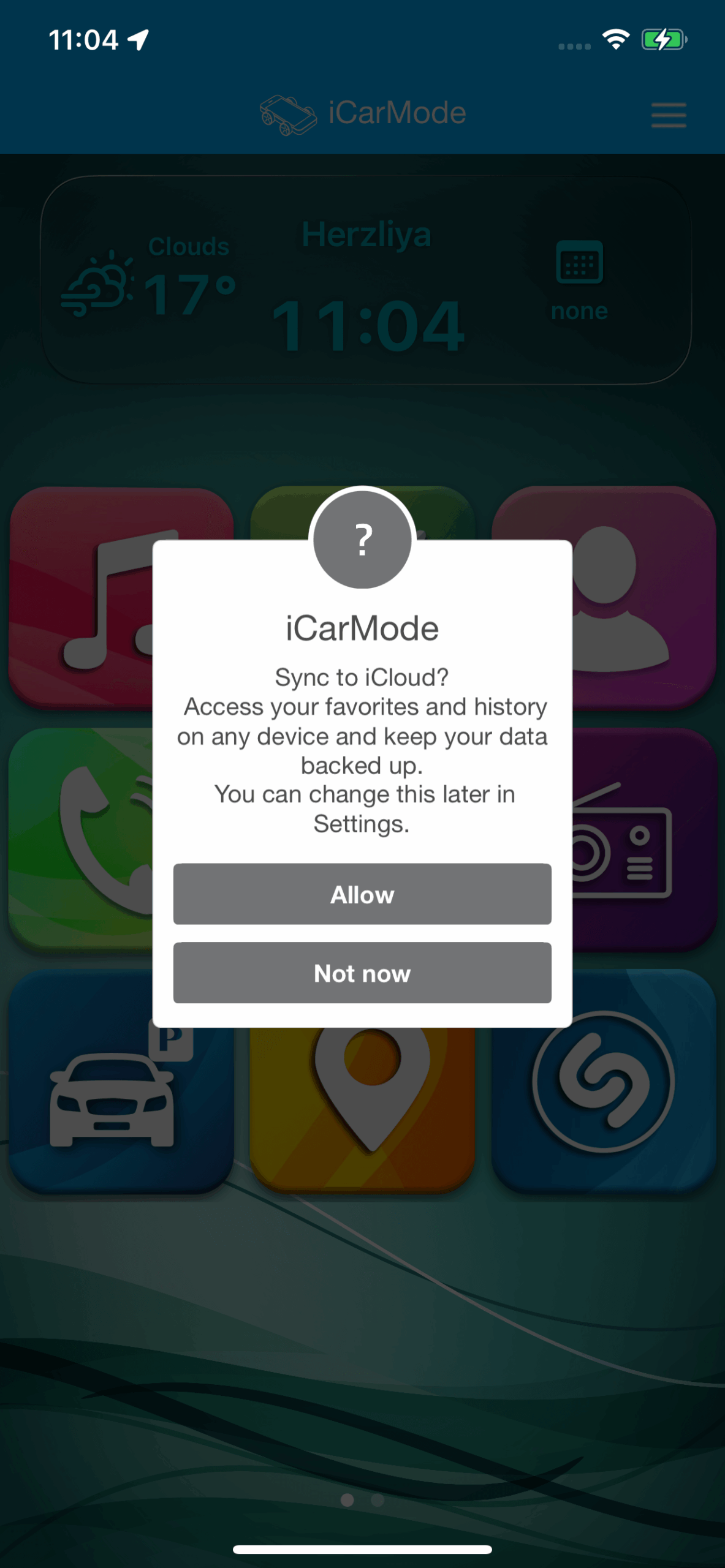
iCarMode respects your privacy and always asks for your permission before enabling iCloud Sync.
When the feature becomes available, you will see a prompt asking whether you want to allow syncing.
Managing iCloud Sync in Settings
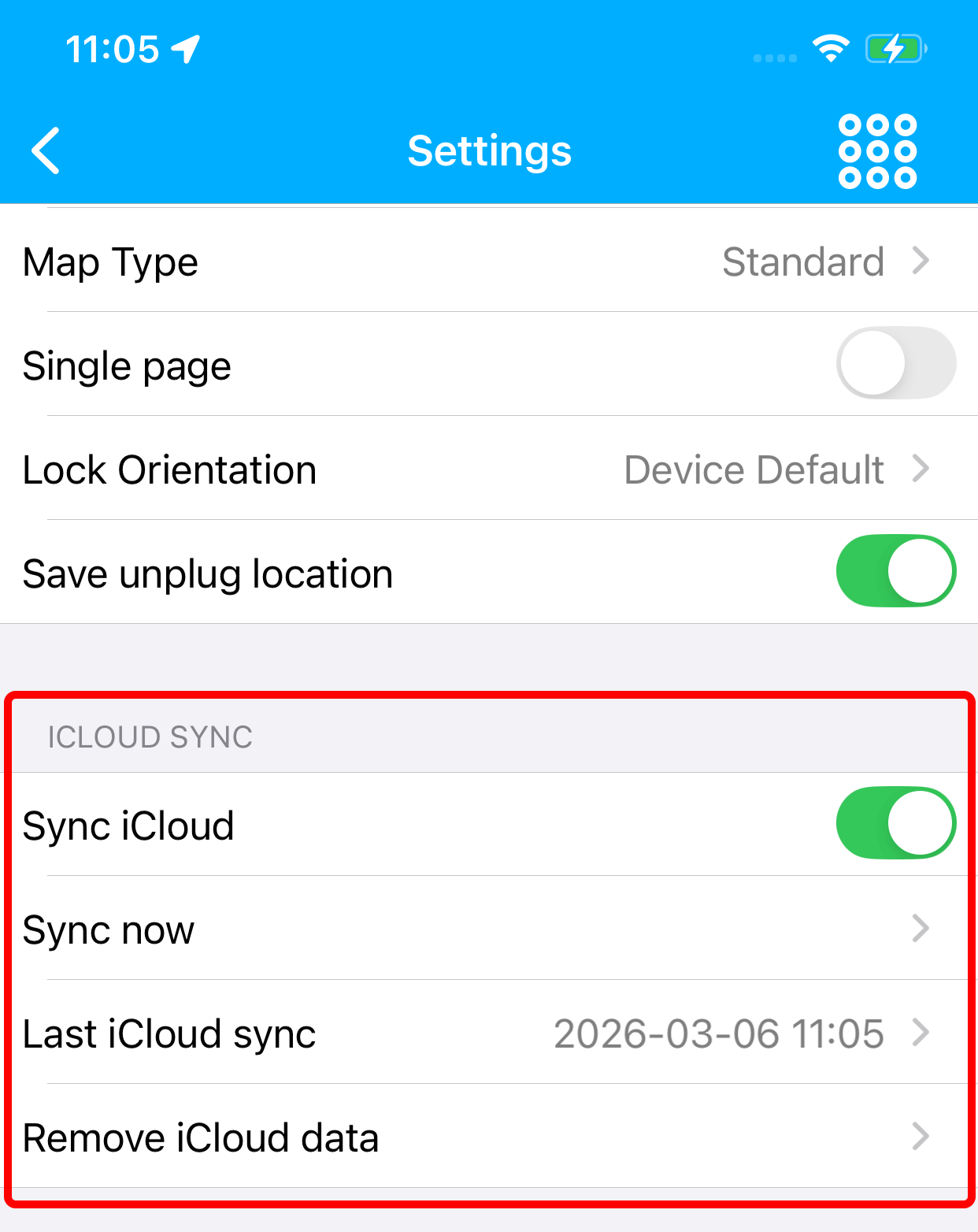
You can control iCloud Sync anytime from the iCarMode Settings screen.
Under the iCloud Sync section you’ll find several options:
Sync iCloud
This toggle enables or disables syncing with your iCloud account.
When enabled, iCarMode will keep your data backed up and synced automatically.
Sync Now
If you want to immediately back up your latest data, you can tap Sync Now to start a manual synchronization.
Last iCloud Sync
This line shows the date and time of the most recent successful sync, so you always know when your data was last backed up. If from any reason the sync will suffer a problem it will also show here.
Remove iCloud Data
If you ever decide you no longer want your data stored in iCloud, you can remove it using this option.
This deletes the synced data from iCloud while leaving your local data on the device.
To read about other customization & settings in iCarMode read this.
A Better Experience Across Devices
With iCloud Sync, your iCarMode setup becomes portable and resilient.
Your dashboard, favorites, and preferences stay with you wherever you use the app — making it easier than ever to enjoy the same driving experience on every device.
How to Restore Your iCarMode Setup on a New iPhone
If you upgrade to a new iPhone, setting up apps again can take time — especially if you have customized your dashboard and saved many favorites.
With iCarMode iCloud Sync, restoring your setup is simple.
- Install iCarMode on your new device.
- Sign in with the same Apple ID used on your previous phone.
- Enable iCloud Sync in the iCarMode settings.
- Your favorites, layout, and preferences will automatically sync to the new device.
This means you can restore your iCarMode experience in seconds, without manually recreating your favorites or dashboard configuration.
FAQ
Does iCarMode iCloud Sync store my data privately?
Yes. All synced data is stored in your personal iCloud account and remains private to your Apple ID.
Does iCarMode store my data in its own servers?
No. iCarMode uses your private iCloud account, so the data remains under your control.
Can I disable iCloud Sync later?
Yes. You can turn iCloud Sync on or off anytime in the iCarMode settings.
Can I manually trigger a sync?
Yes. Tap Sync now in Settings to immediately back up your data.
What happens if I reinstall the app?
Once iCloud Sync is enabled, your favorites and settings can be restored automatically.
What happens if I change phones?
When you install iCarMode on another device using the same Apple ID, your favorites and settings can automatically sync from iCloud.
About iCarMode
iCarMode acts as a customizable car dashboard app for iPhone, allowing drivers to access navigation, music, and nearby places safely while on the road.
Drive Safely.