iCarMode has always supported linking dashboard buttons to external apps using URL schemes. But what if your app isn’t on the supported list yet?
With Apple’s Shortcuts app, you can link any app to your iCarMode dashboard—no waiting for an iCarMode update.
This guide will show you how to:
- Create a Shortcut that opens your target app.
- Assign that Shortcut to a Custom App Button in iCarMode, including entering its name, optional input, and a custom icon.
Part A — Create the Shortcut in the Shortcuts App
- Open the Shortcuts app on your iPhone or iPad.
- Tap + to create a New Shortcut.
- Tap Add Action → search for Open App → select it.
- Tap the blue App placeholder → choose the app you want to open (e.g., Waze, Spotify, WhatsApp).
- Tap the shortcut name at the top → rename it to something clear, like Open Waze.
- (Optional) Tap the icon to customize its look in Shortcuts.
That’s it! You now have a Shortcut that launches your chosen app.
Part B — Connect the Shortcut in iCarMode
Now let’s put that Shortcut onto your iCarMode dashboard.
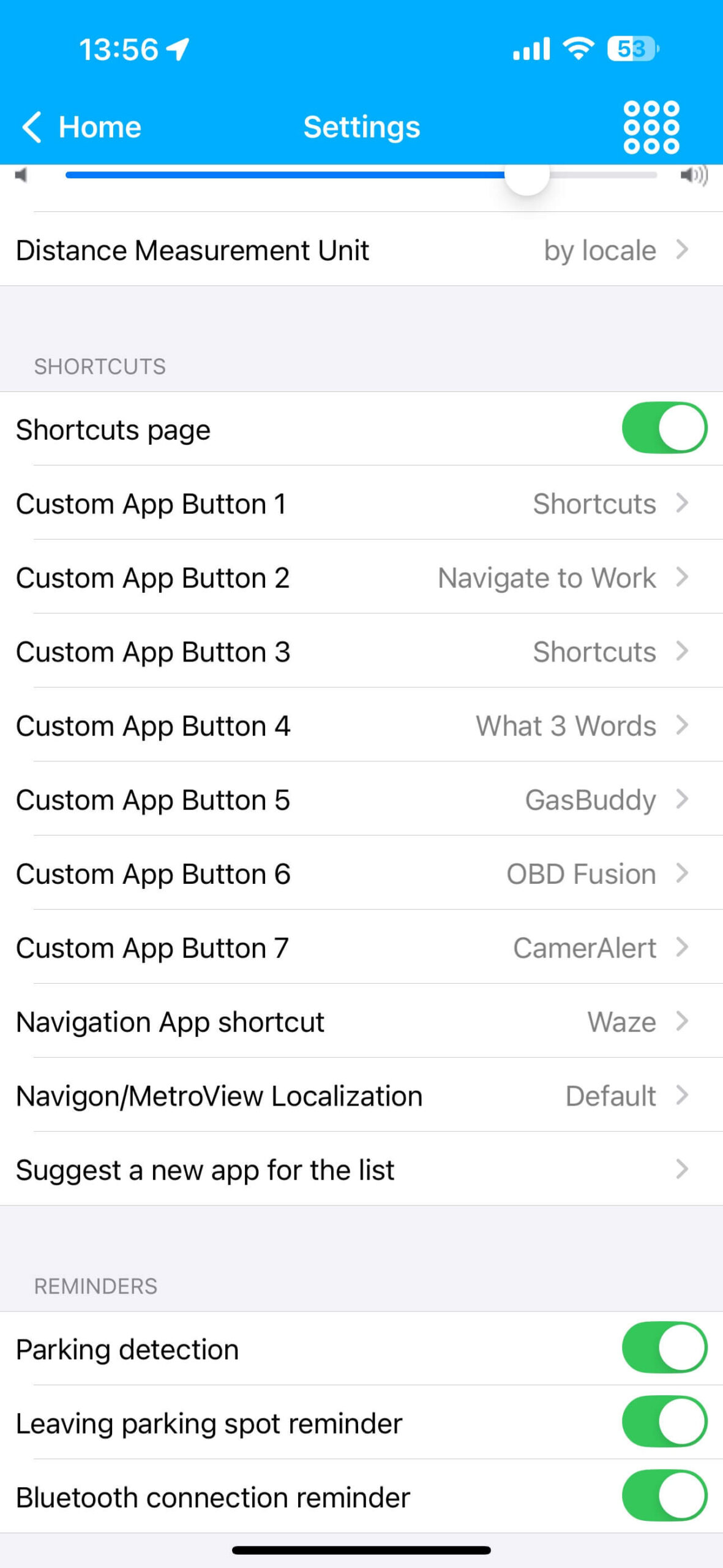
Step 1 — Open Custom App Button Settings
- Go to iCarMode → Settings.
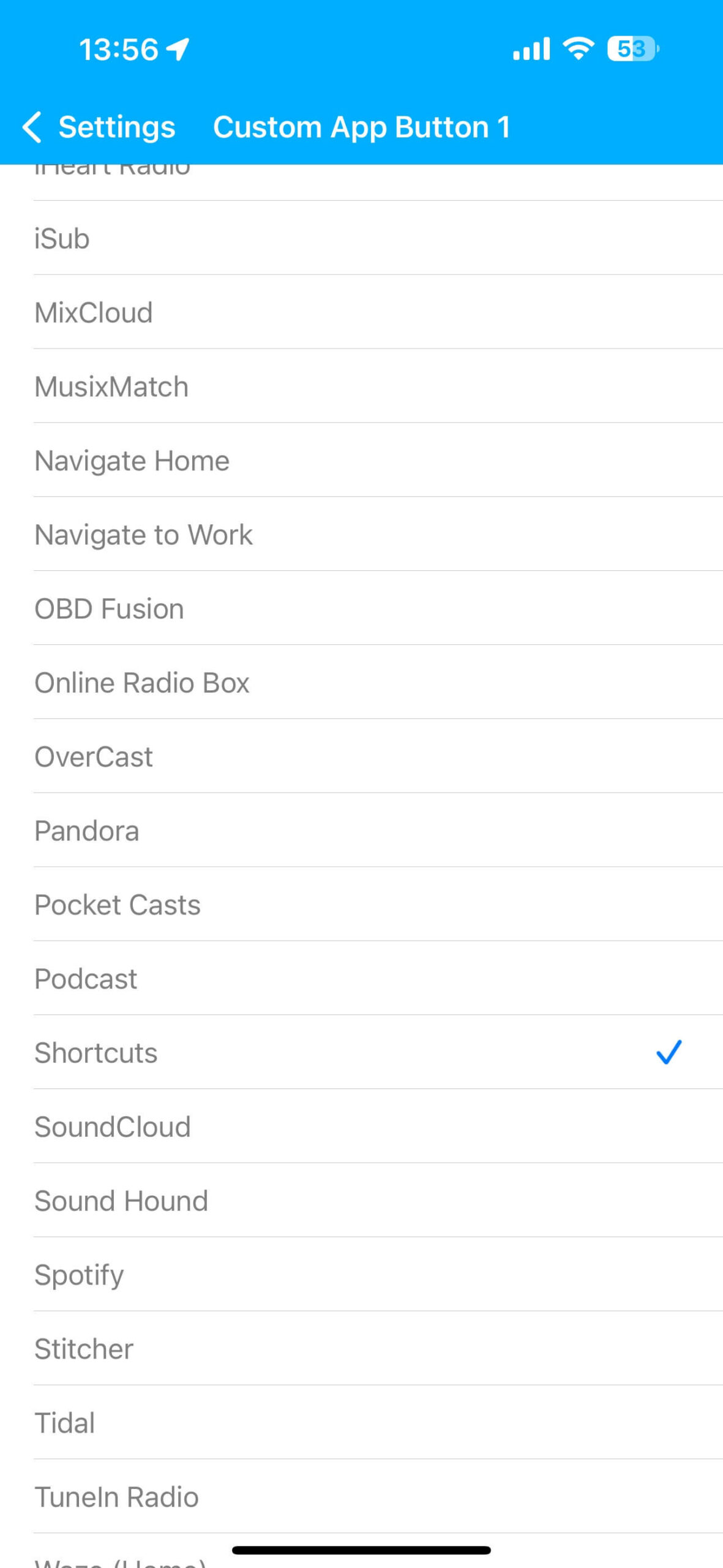
- Scroll down to the Shortcuts / Custom App Buttons section. (See Screenshot 1)
- Pick the button slot you want to assign (e.g., Custom App Button 1).
Step 2 — Select “Shortcuts” as the Source
-
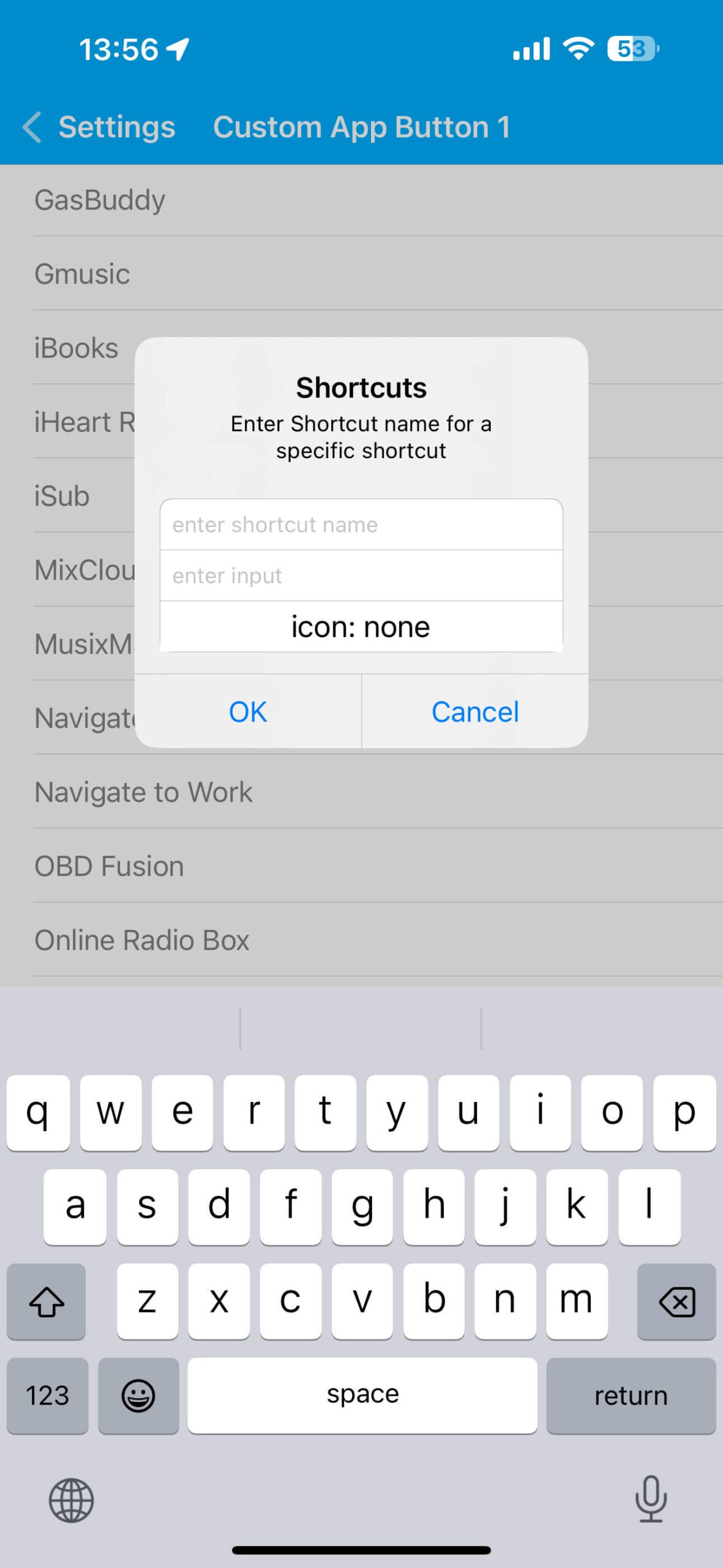
In the app selection list, scroll down and tap Shortcuts. (Screenshot 2)
Step 3 — Enter Shortcut Details
You’ll now see a Shortcuts dialog. (Screenshot 3)
Here you can configure:
-
Shortcut name → type the exact name you gave in the Shortcuts app (e.g.,
Open Waze). -
Input (optional) → only needed if your Shortcut expects text input.
-
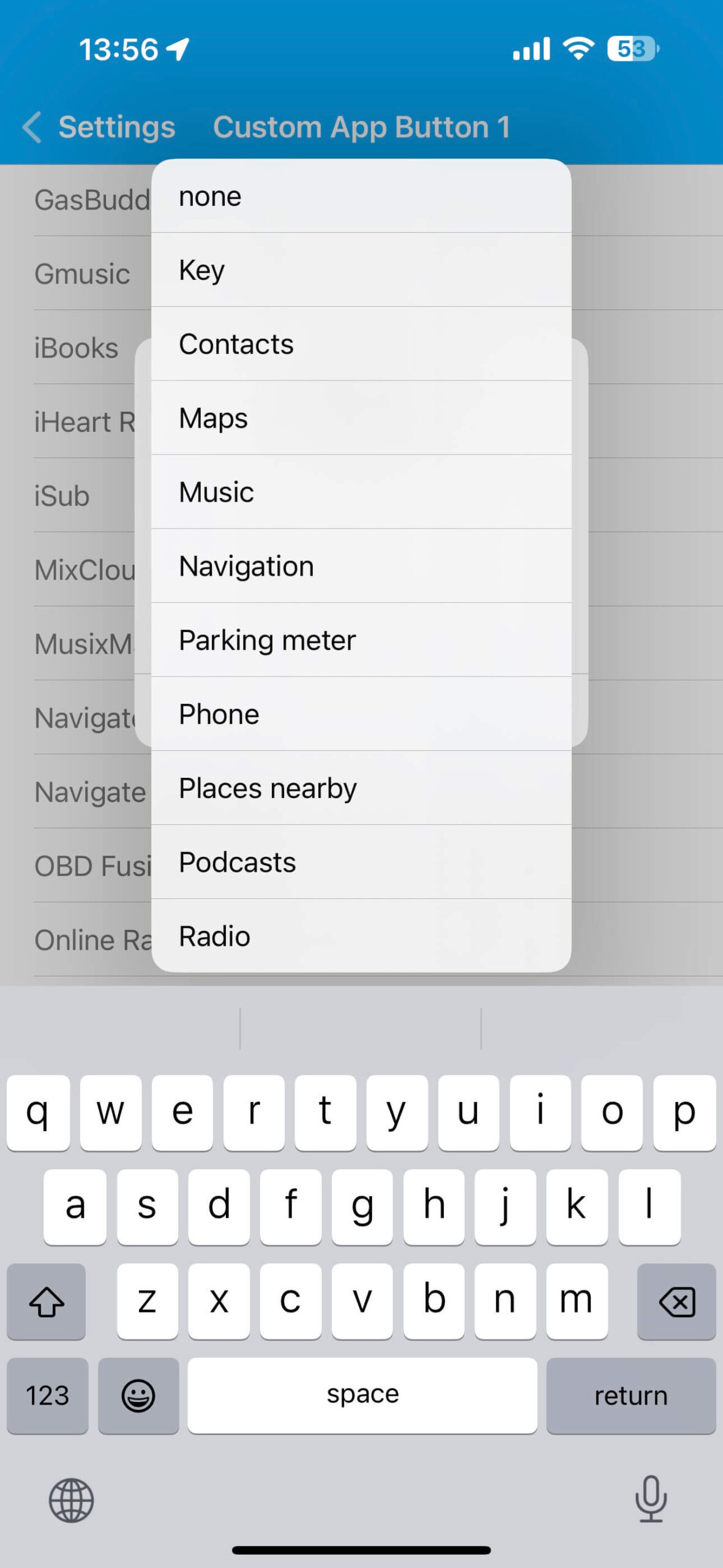
Icon → pick an icon category (Maps, Music, Phone, etc.) so your dashboard button looks unique. (Screenshot 4)
Tap OK when done.
Step 4 — See It on the Dashboard
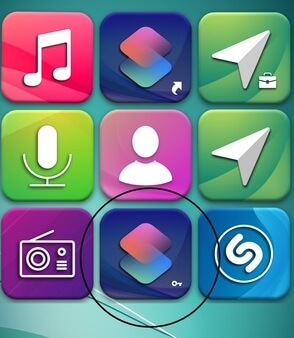
Return to the main dashboard—you’ll now see your Shortcut as a button, with the icon you picked. Tap it, and iCarMode will launch your Shortcut, which in turn opens the app. (Screenshot 5)
Example: Add a Button to Open Waze
- Create a Shortcut called Open Waze using the Open App → Waze action.
- In iCarMode → Settings → Custom App Button → choose Shortcuts.
- Enter Open Waze as the name.
- Pick the Navigation icon.
- Done—your dashboard now has a Waze button.
Tips & Troubleshooting
- Exact names matter → the Shortcut name in iCarMode must exactly match the Shortcut in the Shortcuts app.
- Inputs are optional → only fill if your Shortcut needs parameters.
- Icons help → use icons to distinguish different Shortcuts quickly on the dashboard.
- Multiple Shortcuts → you can assign up to 7 Custom App Buttons, each with its own Shortcut (could be any of the already listed apps or the Shortcuts app as described above).
TL;DR
- Build a Shortcut in the Shortcuts app → “Open App → [Your App]”.
- In iCarMode Settings → Custom App Button → Shortcuts, enter the Shortcut name, input (if needed), and pick an icon.
- Your new button appears on the dashboard—tap to open any app!
👉 By combining Shortcuts with iCarMode, you’re free to make your dashboard truly yours.
Enjoy & Drive Safely.
PS:
Still want to add an app to the official list?
Adding an App shortcut to an additional app requires the app provider to support a certain protocol to allow external calls - so we can not guarantee, but you are welcomed to tap the 'suggest a new app for the list' in the settings tab or send us a request in our facebook page, twitter or contact us by email.
Have additional questions / need some help setting this up?
Contact us at support@iCarMode.com
Download iCarMode: